Nettemp Client Installation
Complete guide for installing Nettemp client on Raspberry Pi and Linux devices.
Prerequisites
- Raspberry Pi (any model) or Linux device (Debian/Ubuntu)
- Python 3.7+
- Internet connection
- Sudo access
Interactive Setup (Recommended)
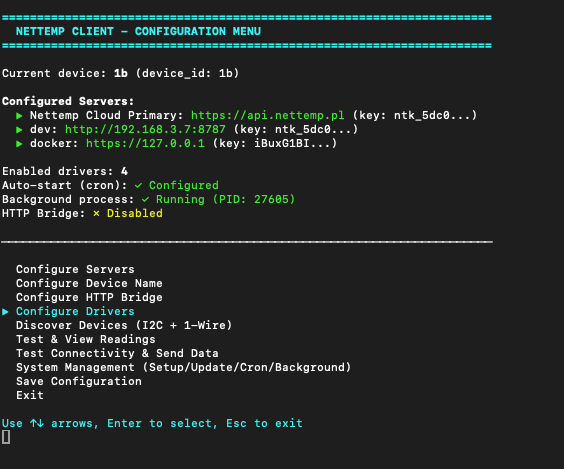
The easiest way to install and configure - uses the interactive configuration tool:
git clone https://github.com/sosprz/nettemp_client.git
cd nettemp_client
python3 nettemp_config.py

What Does nettemp_config.py Do?
The interactive tool provides a complete all-in-one setup:
1. Automatic Environment Setup
- ✅ Checks Python version (3.7+)
- ✅ Creates virtual environment automatically
- ✅ Installs system packages (i2c-tools, lm-sensors)
- ✅ Installs Python dependencies from requirements.txt
- ✅ Adds user to i2c and gpio groups
2. Interactive Configuration
- 🎯 Server Management - Add/edit/remove cloud or self-hosted servers
- 🎯 Device Configuration - Set device ID and group name
- 🎯 API Keys - Configure authentication tokens
- 🎯 Test Connectivity - Verify connection to servers
3. Hardware Discovery
- 🔍 I2C Scanner - Auto-detects connected I2C sensors
- 🔍 1-Wire Discovery - Finds DS18B20 temperature sensors
- 🔍 Auto-Configuration - Suggests drivers based on detected hardware

4. Sensor Management
- 📊 22+ Drivers - Enable/disable individual sensors
- ⏱️ Reading Intervals - Configure per-sensor polling frequency
- 🔧 Driver Settings - Edit I2C addresses, GPIO pins, calibration
- 🧪 Test Readings - Live sensor testing before deployment

5. System Management
- 🚀 Auto-start Setup - Configure cron job for boot
- 🔄 Background Process - Start/stop/status of client
- 📦 Updates - Pull latest changes from GitHub
- 🌉 HTTP Bridge - Enable local HTTP endpoint (optional)
6. No Manual Editing Needed
- All configuration is interactive with menus
- Changes are validated before saving
- No need to edit YAML or config files manually
- Preserves existing settings during updates
Configuration Tool Features
python3 nettemp_config.py
Main Menu:
- ⚙️ Server Configuration
- 🔌 Sensor Configuration
- 🔍 Discover Devices (I2C + 1-Wire)
- 🧪 Test Sensor Readings
- 📊 System Management
- 🔄 Update from GitHub
The tool handles everything - from initial setup to ongoing management!
Legacy Setup Script
If you prefer the older automated setup:
chmod +x setup.sh
./setup.sh
The setup.sh script performs basic installation but lacks the interactive configuration and hardware discovery features of nettemp_config.py.
Manual Installation
If you prefer manual setup:
1. Install System Dependencies
sudo apt-get update
sudo apt-get install -y python3-pip python3-venv lm-sensors git
2. Clone Repository
git clone https://github.com/sosprz/nettemp_client.git
cd nettemp_client
3. Create Virtual Environment
python3 -m venv venv
source venv/bin/activate
4. Install Python Packages
pip3 install -r requirements.txt
5. Create Configuration
cp example_config.conf config.conf
cp example_drivers_config.yaml drivers_config.yaml
Edit these files with your sensor and cloud settings.
6. Set Up Auto-Start
Add to crontab:
crontab -e
Add this line:
@reboot /bin/sleep 30 && /path/to/nettemp_client/venv/bin/python3 /path/to/nettemp_client/nettemp_client.py &
7. Enable I2C (if using I2C sensors)
sudo raspi-config
# Interface Options → I2C → Enable
# Add user to i2c group
sudo usermod $USER -aG i2c
# Reboot to apply
sudo reboot
Verify Installation
Using Interactive Tool (Recommended)
python3 nettemp_config.py
Navigate to:
- "Discover Devices" - Check if I2C and 1-Wire sensors are detected
- "Test Sensor Readings" - See live data from enabled sensors
- "System Management" → "Check Status" - Verify background process
Manual Verification
# Check Python version
python3 --version
# Should be 3.7 or higher
# Test with fake data
python3 demo_all_sensors.py
# Sends test data to configured servers
# Run client manually
python3 nettemp.py
# Press Ctrl+C to stop
File Structure
nettemp_client/
├── nettemp_config.py # Interactive configuration tool ⭐
├── nettemp.py # Main client (cloud sync + sensors)
├── nettemp_client.py # Legacy runner (deprecated)
├── bridge.py # HTTP bridge (optional)
├── driver_loader.py # Driver manager
├── config.conf # Your device settings (git ignored)
├── drivers_config.yaml # Your sensor config (git ignored)
├── example_config.conf # Config template
├── example_drivers_config.yaml # Drivers template
├── demo_all_sensors.py # Test script with fake data
├── setup.sh # Legacy auto-install script
├── update.sh # Update script
├── requirements.txt # Python dependencies
├── venv/ # Virtual environment (auto-created)
└── drivers/ # 22+ sensor drivers
├── system.py # CPU, RAM, disk
├── rpi.py # Raspberry Pi temp
├── dht22.py # DHT22 GPIO
├── dht11.py # DHT11 GPIO
├── bme280.py # BME280 I2C
├── w1_kernel.py # DS18B20 1-Wire
├── hcsr04.py # Ultrasonic distance
├── capacitive_soil.py # Soil moisture (ADS1115)
└── ... # 15+ more drivers
Python Dependencies
From requirements.txt:
requests # HTTP client
pyserial # Serial communication
psutil # System stats
apscheduler # Task scheduling
pyyaml # Config parsing
# Sensor-specific (installed as needed):
Adafruit-DHT # DHT11/DHT22
w1thermsensor # DS18B20
smbus2 # I2C sensors
RPi.GPIO # GPIO control
Platform-Specific Notes
Raspberry Pi
- Enable I2C:
sudo raspi-config - Enable 1-Wire: Add
dtoverlay=w1-gpioto/boot/config.txt - Install GPIO library:
pip3 install RPi.GPIO
Ubuntu/Debian
- I2C group:
sudo usermod $USER -aG i2c - Serial access:
sudo usermod $USER -aG dialout
Docker
Docker deployment is also supported - check the repository for Dockerfile.
Updating
Interactive Update (Recommended)
cd nettemp_client
python3 nettemp_config.py
Select: "System Management" → "Update from GitHub"
The tool will:
- ✅ Stop running client
- ✅ Pull latest changes from GitHub
- ✅ Update Python dependencies
- ✅ Merge new drivers to your config
- ✅ Preserve your settings
- ✅ Offer to restart client
Manual Update
cd nettemp_client
git pull origin main
source venv/bin/activate
pip3 install -r requirements.txt --upgrade
Your config.conf and drivers_config.yaml are preserved during updates. New drivers from example_drivers_config.yaml are automatically added to your configuration (disabled by default).
Uninstalling
To remove Nettemp client:
# Remove cron job
crontab -e
# Delete the @reboot line
# Remove directory
cd ~
rm -rf nettemp_client
# Remove I2C group (optional)
sudo deluser $USER i2c
Next Steps
- Configure your sensors in
drivers_config.yaml - Get API Key from Dashboard
- Set up alarms and notifications in the dashboard
Troubleshooting
Import Errors
# Reinstall dependencies
source venv/bin/activate
pip3 install -r requirements.txt --force-reinstall
Permission Denied (I2C)
sudo usermod $USER -aG i2c
sudo reboot
Cron Not Starting
# Check cron logs
grep CRON /var/log/syslog
# Test manually
/bin/sleep 5 && /path/to/venv/bin/python3 /path/to/nettemp_client.py
Support
Need help? Contact us:
- Discord: discord.gg/S4egxNvQHM